How to connect WhatsApp
Connect your WhatsApp Business number to Upload-Post to read and answer its chats from the DMs inbox or through the WhatsApp Messages API. It takes about 5 minutes and is done in Meta's official window: Upload-Post never sees your Facebook password.
WhatsApp does not publish posts. Once connected, the number is used to send and receive messages only.
Before you start
You need:
- A Facebook account that can manage (or create) your company's Meta business portfolio. If you don't have a portfolio yet, you create one inside the window in one step.
- A phone number for the business that you control and that can receive an SMS or a voice call to verify it. It can be a mobile or a landline.
- Your business name as you want customers to see it (the WhatsApp display name). Meta reviews it: it has to match your business, not be a generic word or a person's name only.
Which number can you use?
| The number is… | Can you connect it? |
|---|---|
| Not on WhatsApp | Yes. This is the simplest case. |
| Used in the WhatsApp Business app on your phone | Yes, and you keep using the app. Tick I already use this number in the WhatsApp Business app (see Keep using the WhatsApp Business app). |
| Used in the normal (personal) WhatsApp app | Not as is. Move it to the WhatsApp Business app first, or delete the WhatsApp account on that phone (Settings > Account > Delete account) and connect it as a new number. |
| Already connected to another WhatsApp API provider | First remove it there, and turn off its two-step verification PIN in WhatsApp Manager (or ask that provider for it). |
Use a spare number (a second SIM or a landline). A number connected to the API in standard mode can no longer be used in the WhatsApp apps.
Step 1: open Connect WhatsApp
- In the Upload-Post dashboard, go to Manage users and find the profile that will own the number.
- Click Connect WhatsApp (the WhatsApp icon) on that profile.
- If the number is already in the WhatsApp Business app, tick I already use this number in the WhatsApp Business app. Otherwise leave it unticked.
- Click Continue with Facebook.
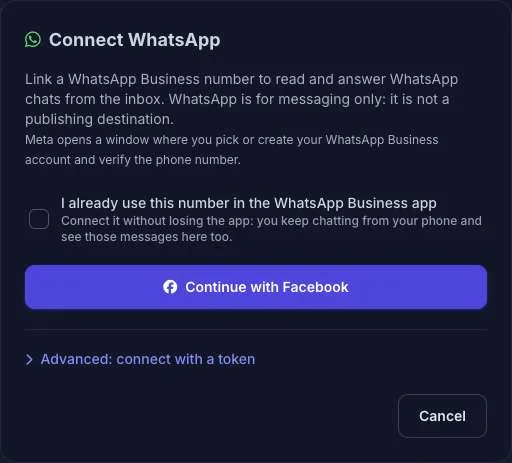
Meta opens its window on top of the dashboard. If nothing opens, allow pop-ups for app.upload-post.com and click the button again.
If you manage numbers for clients, send them the white-label connect page (a JWT link generated with platforms including whatsapp). They see the same Connect WhatsApp button and do these steps with their own Facebook account, so the number stays in their business portfolio.
Step 2: follow Meta's window
The order of the screens can change slightly, as Meta updates its flow, but the steps are always these:
- Log in with Facebook and click Get started / Continue. Meta lists what Upload-Post will be able to do (manage your WhatsApp accounts and send and receive messages).
- Phone number. Type the business number with its country code and choose Text message or Phone call. Enter the 6-digit code you receive.
- Business portfolio. Pick your company's portfolio, or create one: business name, website (optional) and country.
- WhatsApp Business account. Pick an existing one, or let Meta create a new one inside the portfolio.
- WhatsApp business profile. Enter the display name customers will see, the category and, optionally, a description. You can edit the profile later from Upload-Post.
- Review the permissions and click Confirm / Finish.
When the window closes, Upload-Post shows WhatsApp connected with the number and its quality rating. Its chats start arriving in DMs right away.
If you close Meta's window before the last screen, nothing is connected and you see The Meta window was closed before finishing. Start again from step 1: the portfolio and account you already created will be in the list.
Keep using the WhatsApp Business app
With I already use this number in the WhatsApp Business app ticked, the number keeps working on your phone (this is what Meta calls coexistence). Meta's window changes slightly:
- Enter the number that is in the WhatsApp Business app. Meta shows a code in the window.
- On your phone, open the WhatsApp Business app. You get a message from Facebook Business: tap Connect, then Connect to the Business Platform.
- Meta asks whether to share your chat history with Upload-Post. Confirm to continue.
- Type the code in Meta's window and finish the remaining screens.
Good to know:
- You need the WhatsApp Business app 2.24.17 or newer. Personal WhatsApp doesn't support it.
- Messages you send from the phone also appear in the Upload-Post conversation, and vice versa.
- Your linked devices (WhatsApp Web, desktop) are logged out once when you connect. Link them again afterwards.
- Some features stop working in the app while connected: broadcast lists become read-only, and disappearing messages, view-once messages and live location are turned off in 1:1 chats. Group chats and calls keep working in the app but are not available through Upload-Post.
- Open the WhatsApp Business app on the phone at least once every 14 days: if the phone stays inactive longer, Meta disconnects the number from the platform and you need to connect it again.
- To disconnect from the phone: WhatsApp Business app > Settings > Account > Business Platform > Disconnect.
Step 3: after connecting
- Add a payment method in Meta. Meta bills WhatsApp messages directly to your WhatsApp Business account; Upload-Post does not charge for them. Answering a customer within 24 hours of their last message is free; messages that start a conversation (templates) are paid. Add a card in WhatsApp Manager > Payment settings before sending templates. Prices: Meta's pricing.
- Answer within 24 hours. When a person writes to you, you can reply freely for 24 hours. After that, WhatsApp only lets you send an approved template until they write again. Create templates from the DMs inbox (New template) or the templates API.
- Complete your business profile. In DMs, open WhatsApp settings to add the photo, description, address, email and websites, and to create QR codes and links that open a chat with your number.
- Display name review. Meta reviews the display name in the first hours. Until it is approved, the number shows only the phone number to customers.
- Messaging limits. A new business portfolio can start conversations (templates) with 250 different people every 24 hours. Meta raises it to 2,000 and beyond as you verify your business in Meta Business Suite and keep a good quality rating. Replies within the 24-hour window are not limited.
Disconnect or move a number
- Disconnect: in Manage users, click the WhatsApp account on the profile and choose Disconnect. The number stays in your Meta business portfolio; delete it from WhatsApp Manager if you also want to release it there.
- Move to another profile or account: connect it again from the new profile. A number belongs to one Upload-Post account at a time: connecting it from another account moves it there, together with its new messages.
Troubleshooting
| What you see | What to do |
|---|---|
| Nothing opens after Continue with Facebook | Allow pop-ups for app.upload-post.com, disable ad blockers for the page and try again. |
| The Meta window was closed before finishing | Start again and complete every screen until Meta says it is done. |
| Meta says the number is already registered on WhatsApp | It is still in a WhatsApp app. Use the WhatsApp Business app option, or delete the WhatsApp account on that phone and wait a few minutes. |
| The verification code never arrives | Pick Phone call instead of text message. Landlines only work with the call. |
| Connected, but the number could not be registered on the Cloud API | The number has a two-step verification PIN from another provider. Turn it off in WhatsApp Manager > Phone numbers > Two-step verification, then connect again. |
whatsapp_reauth_required / the account shows Reconnect | The access was removed in Meta or, in coexistence, the number was disconnected from the phone. Click Connect WhatsApp again. |
whatsapp_template_required | More than 24 hours have passed since the customer's last message. Send an approved template. |
whatsapp_undeliverable | The recipient isn't on WhatsApp, uses an old app version, or blocked your number. |
Advanced: connect with a token
If your company already manages its WhatsApp Business account through a system user of your Meta business portfolio, you can connect a number without Meta's window. The token must have the whatsapp_business_messaging and whatsapp_business_management permissions and be issued for Upload-Post's Meta app (assign the app to the system user first): a token issued for another app would subscribe that app to your number, not Upload-Post.
In the dashboard: Connect WhatsApp > Advanced: connect with a token. Or through the API:
curl -X POST https://api.upload-post.com/api/uploadposts/users/whatsapp/token \
  -H "Authorization: Apikey YOUR_API_KEY" \
  -H "Content-Type: application/json" \
  -d '{
    "profile_username": "my_profile",
    "access_token": "EAAG...",
    "waba_id": "102290129340398",
    "phone_number_id": "106540352242922",
    "register": true
  }'
register: true registers the number on the Cloud API (needed the first time a number is used with the API; leave it out for a number that is already registered). The response is the connected account, as in the dashboard.
Next steps
- WhatsApp Messages API: send messages, templates, media and interactive messages; list conversations.
- Webhooks: get
dm_receivedevents when customers write.